Managing Opt-Outs
Easily manage your opt-out list from your account.
»
Updated over a week ago
Managing Opt Outs
Our Opt Out processes have been upgraded to give you more control over your communications. You can now manage multiple opt-out lists within your account - making it easier to comply with customer preferences and communication regulations.
[vc_separator type='transparent' position='center' color='' thickness='' up='25' down='25']
🚨 What’s Changed?
Previously, each account had a single opt-out list. Now, you can create separate lists for different message types, such as:
Marketing
Regional communications
Transactional notifications
Alerts or reminders
This means a recipient can choose to opt out of marketing messages, but still receive transactional or critical alerts.
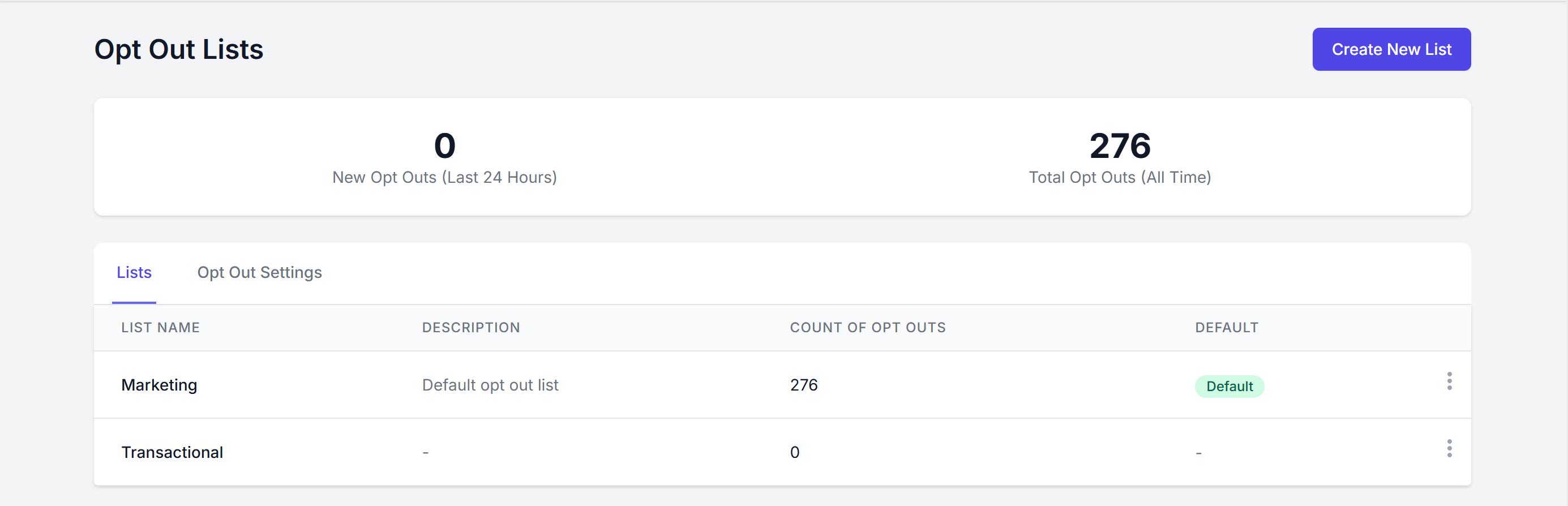
📋 Opt-Out Lists Dashboard
From the Opt-Out Lists section of your account:
View your existing opt-out lists
See how many opt-outs are recorded per list
Create new lists tailored to specific types of communication
Each list has:
A name and optional description
A count of opt-outs
An option to set one list as the default
⚙️ The default list is used when no specific list is selected during message send.
➕ Creating a New Opt-Out List
Navigate to Opt Out from the sidebar.
Click Create New List.
Enter a name (e.g. “Marketing”, “Alerts – VIC Region”).
Optionally add a description.
Save.
✉️ Assigning an Opt-Out List to a Message
When sending messages, you can now select which opt-out list to associate with the campaign. This allows recipients to unsubscribe from that specific category only.
For example:
If you assign the “Marketing” opt-out list to a message, recipients will only be opted out of marketing content when they unsubscribe.
Their ability to receive messages in a “Transactional” or "Critical Alert" nature remains unaffected.
⚠️ Important Notes
You must always assign the correct opt-out list to match the nature of the message.
Recipients who unsubscribe will be added to that specific list and will not receive messages associated with that list in the future.
You can still view, edit, or remove entries from any opt-out list as needed.
🧾 Viewing and Managing Lists
In the Opt Out Lists section, you can:
Click into any list to view who has opted out
Remove entries if needed (only do so in line with compliance regulations)
Edit list names and descriptions
Switch the default list