Virtual Number Settings
Virtual Numbers allow you to set up simple automatic replies for recipients that text in and or more sophisticated replies to specific keywords
»
Updated over a week ago
Virtual Number Settings
Virtual Numbers allow you to set up simple automatic replies for recipients that text in and or more sophisticated replies to specific keywords.
To set up your purchased Virtual Number:
Navigate to Virtual Number
Click on the three dots ⋮ and select Edit.
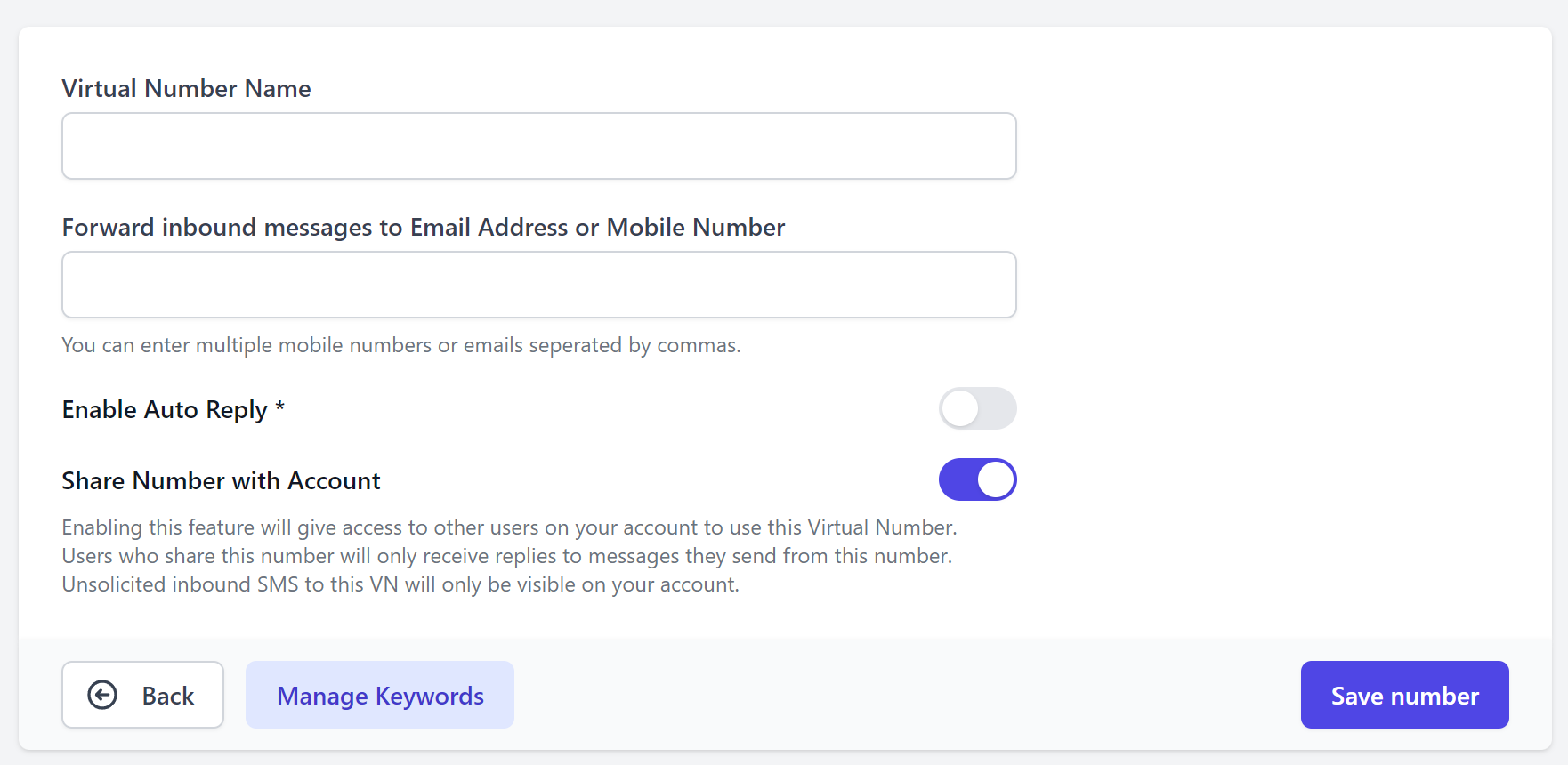
Under Virtual Number Name, give the number a name.
To send notifications of inbound SMS to email addresses (other than the registered email on your account), or as an SMS to a mobile number, enter details in the Forward inbound messages to Email Address or Mobile Number area.
Enable Auto Reply (optional) by using the toggle. This will automatically send a message (one you have preset) to anyone who has sent a message to your Virtual Number.
Tip: Auto Reply is a great way to let the person who "texted in" know that their message was received and will be responded to shortly. Perfect for order, appointment or campaign submissions
Share Number with Account allows other users on your account to send and receive SMS from this same Virtual Number.
NOTE: As the primary registrant of the Virtual Number, only you will receive inbound messages where an external sender initiates communication ("texts in"). Other users on the account will only receive replies to messages they send from the Shared Virtual Number.
In Keywords Management you can nominate words or phrases that automatically trigger a specific pre-determined message to anyone who has sent that keyword in a message, to your Virtual Number.
See here for how to set up Keywords.